Official Guide / Quick Start
Shadowrocket Quick Start
Add an existing configuration, choose Global Routing, then connect and verify access.
These steps focus on iPhone and iPad. Check the App Store listing for system requirements and device compatibility. Screenshots help identify the interface; available options may vary by device.
If this is your first time, follow the steps in order. If you already have a usable entry, go straight to choosing a mode. For more on configuration, rules, and routine maintenance, see the system guide.
STEP 01 / IMPORT
Add Server: Add or Import
Identify the details you have, then choose the matching option. A subscription URL and an individual server’s details are different types of input.
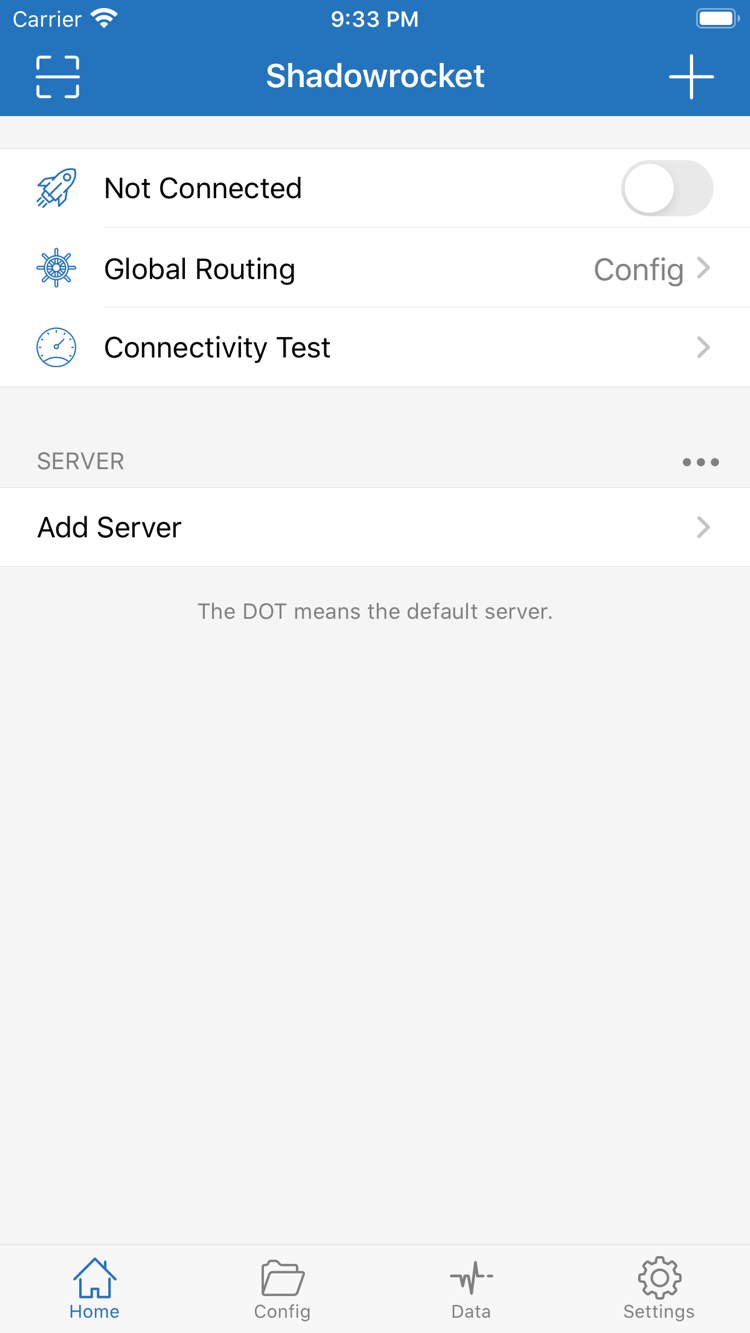
Open Shadowrocket, go to Home, and find Add Server in the SERVER group, or use the add button on the page. First identify what you have: a subscription link retrieves and updates a group of entries; an individual share link usually contains settings for one server; manual details list the protocol, address, port, and authentication information separately. Don’t enter a subscription URL in Host, and don’t identify a link by its length.
Have a Subscription Link? Choose Subscribe
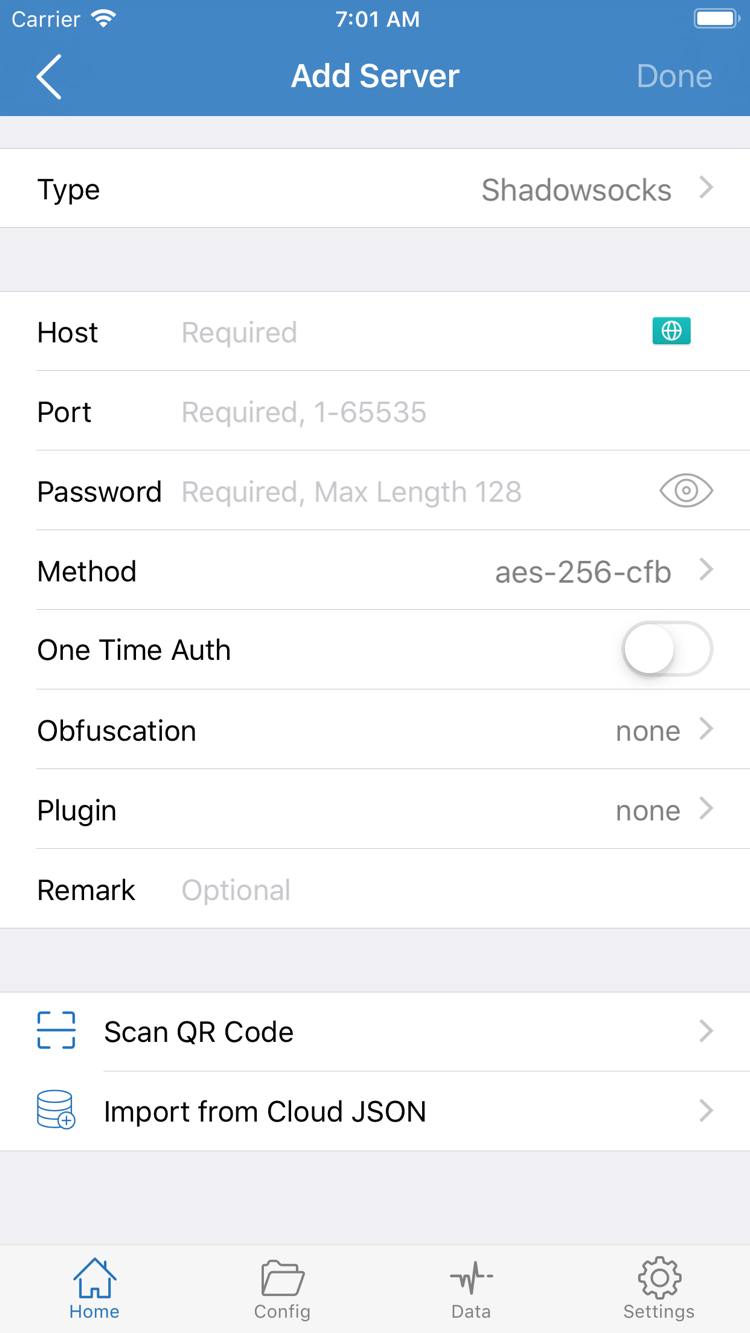
In Add Server, tap Type and choose Subscribe, then enter the complete subscription URL in the URL field. Add a descriptive remark if useful, such as the purpose or source, but don’t include authentication details. Check for extra spaces, line breaks, or quotation marks at either end, and make sure the URL wasn’t truncated when copied. Save, return to Home, and wait for the subscription to load.
Saving successfully doesn’t mean the subscription content was retrieved. Back in the list, look for a subscription group or its server entries. If the group appears without selectable entries, update the subscription and check for an error message. Updating retrieves the entries again; it doesn’t guarantee that every server will connect. If the subscription has expired, its permissions have changed, or its content is empty, check the details provided by your existing service provider.
Have Server Details? Check the Type and Each Field
To add a server manually, choose the protocol in Type that matches your details, then enter Host, Port, and the relevant authentication fields. The screenshot shows fields such as Password and Method, but fields vary by Type; don’t apply the same set to every protocol. Host is usually a domain name or IP address, without a web page path. Enter the Port as provided. Copy authentication values such as Password and UUID in full, preserving capitalization and symbols.
If you have a usable QR code, scan it with Scan QR Code, then check the parsed type and address. Import from Cloud JSON is for compatible data formats, not a general-purpose subscription import option. Whichever import method you use, confirm that the protocol matches your existing details before saving. If a format isn’t recognized, first check what the details are for instead of repeatedly switching Type.
STEP 02 / ROUTING
Global Routing: Choose a Mode
The server determines which endpoint the proxy connection uses. Global Routing determines how requests are handled. Check each separately.
After selecting an entry, return to Home and tap Global Routing. Distinguish between the three modes: Config, Proxy, and Direct. Switching modes won’t fill in missing server details or restore an expired subscription. For your first setup, identify the active mode so that your connection test and troubleshooting use consistent settings.
Config: Route Requests Using the Selected Configuration
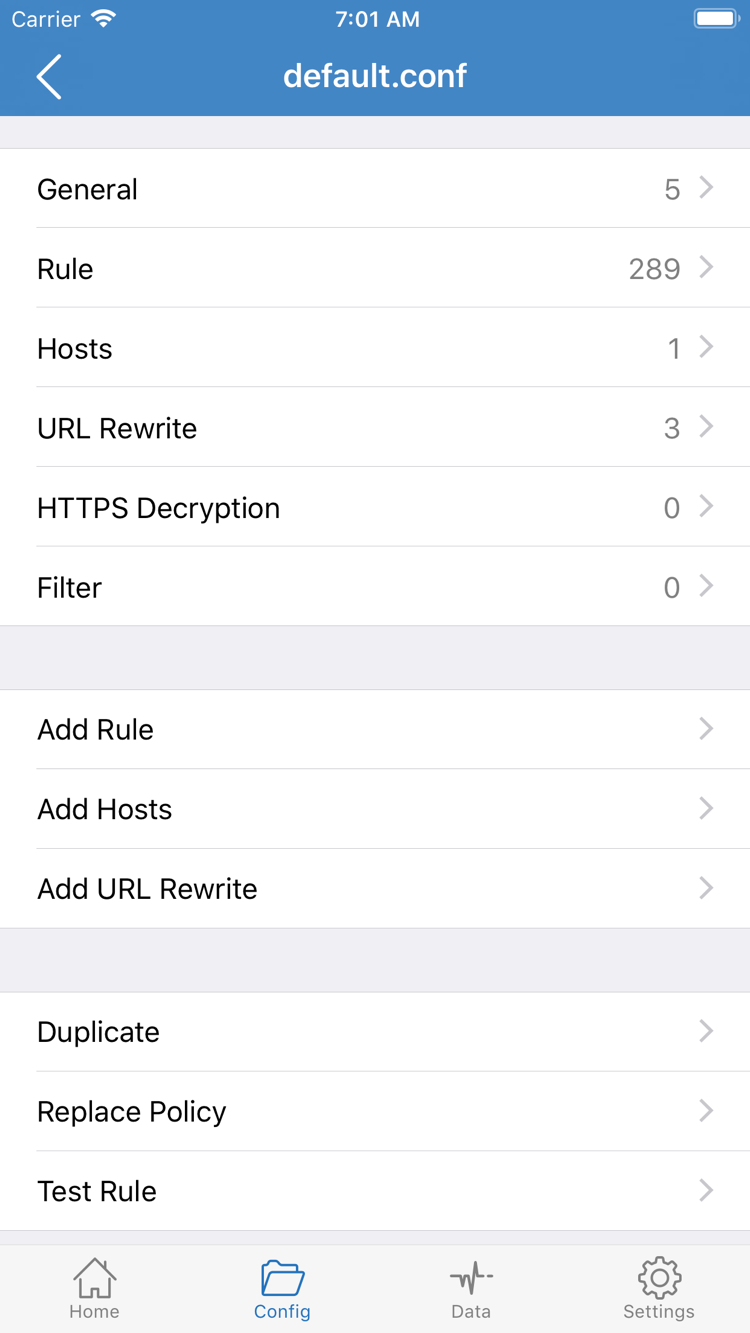
Config uses the selected configuration file and its rules to determine how requests are handled. On the Config tab at the bottom, check which file is selected, then open it to review its Rule section. General, Rule, Hosts, URL Rewrite, and HTTPS Decryption in the screenshot are separate configuration sections. You don’t need to change them all to get started, and you should avoid enabling features unrelated to your current needs just to connect.
Importing subscription entries doesn’t mean a routing configuration is selected. Server entries and configuration files are managed separately: the former provide connection details; the latter determine how requests are matched. Before using Config, confirm that the selected file exists and that its rules refer to a usable server or policy. If you haven’t set up routing rules yet, use Proxy to check basic connectivity, then return to Config.
Proxy and Direct: Choose a Clear Route
Proxy sends requests handled by this mode through the selected proxy route. It’s useful for checking whether the server can access a destination during initial troubleshooting. Results may differ across apps, protocols, and network requests. Direct handles requests over the direct route and can help you check whether the device’s regular network works. Turning on the connection switch in Direct does not mean the selected proxy server is in use.
Here’s a simple example of a Config rule snippet. It sends example.com and its subdomains through PROXY; other unmatched requests fall back to FINAL,DIRECT. example.com is an example domain, not a server address. The snippet illustrates routing only; you don’t need to replace your entire configuration with it during initial setup.
[Rule]
DOMAIN-SUFFIX,example.com,PROXY
FINAL,DIRECT
Rules are evaluated from top to bottom, and matching requests follow the corresponding policy. Place FINAL after specific rules. If you use Add Rule in Rule, keep the original configuration and add only rules relevant to your current test. For complete syntax and policy details, see Config and rules in the system guide. This guide continues with connection testing.
STEP 03 / CONNECT
Home: Turn on the Connection
Check the server and mode before authorizing the connection in iOS. Connection status is only the starting point for verification.
Return to Home and recheck two things: whether the selected entry in the SERVER group is the server you’re about to test, and whether Global Routing is set to the intended mode: Config, Proxy, or Direct. Entries may change after a subscription update, so don’t rely on what you remember selecting last time. For the first connection test, stay on the same Wi-Fi or cellular network to keep the results comparable.
Run Connectivity Test first to check connectivity using the current test method. If it fails, don’t repeatedly toggle the connection. Check that the server details are complete and refer to the last section for troubleshooting. If it responds, turn on the connection switch at the top of Home. Connectivity Test results apply only to that test method; a single test can’t confirm that all websites, DNS lookups, or app requests are working.
First Connection: Review the iOS VPN Configuration Prompt
The first time you connect, iOS may ask to let Shadowrocket add a VPN configuration. This permission is needed to establish a system network connection. Check the app name in the prompt, follow the instructions to allow it, and complete any verification required by your device. This is an iOS system process; you don’t need to enter your subscription password in the app or share your device passcode with anyone.
After authorizing, return to Shadowrocket and wait for the connection status at the top to change. If you canceled the prompt, the connection usually won’t complete. Turn the switch on again and follow any prompt that appears. If the app reports an authorization or configuration error, read the message, then check whether the device is managed or another VPN configuration is affecting the connection. Follow your organization’s requirements on managed devices, and don’t delete configurations you don’t recognize.
Connected: Keep the Test Conditions the Same
When the status at the top changes from Not Connected to connected, keep the selected server, mode, and network unchanged. The VPN status in iOS shows that the connection configuration is enabled; it doesn’t prove that a particular website is routed through the proxy or that the server can reach every destination. Make a new request and check whether the result matches the current mode.
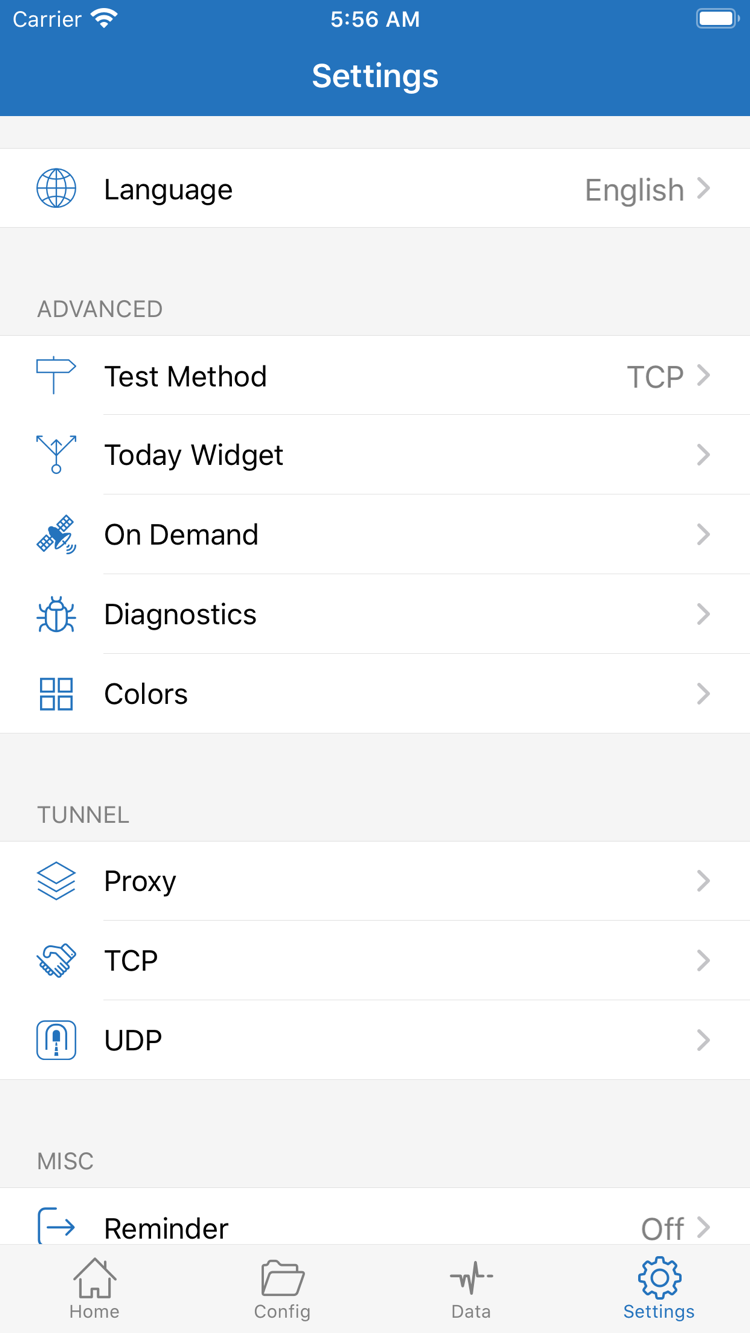
During this manual test, don’t change On Demand. It affects when connections are made automatically; it isn’t part of adding server details. If the app reconnects after you turn it off, check the existing On Demand settings instead of assuming the connection switch is broken.
STEP 04 / VERIFY
Verify Access: Check the Actual Route
Check these separately: whether the switch is on, whether the test responds, and whether the destination is accessible.
Once connected, open a browser or another app that uses the network and make a new request to a destination you selected in advance. An already-open page may be cached, so it doesn’t confirm that this connection works. Reload the page or open specific content and check that text, images, and subsequent requests load—not just the page title.
Record at least three things during the test: the selected server name, the Global Routing mode, and whether access worked. If needed, open Data to review connections or traffic from this test; the records shown depend on the app’s current settings. An increase in traffic alone doesn’t prove that a request used the expected policy. Check the request domain, any visible routing details, and the actual result.
Config Mode: Test Proxy and Direct Destinations Separately
With Config, test one destination that should match a proxy rule and another that should go direct. Test each separately. Access to a direct destination doesn’t prove that the proxy server works, and access to a proxied destination doesn’t prove that all other requests are routed correctly. Check the domain of the actual request: a page’s address-bar domain may not cover every resource it loads.
If Proxy works but Config doesn’t, keep the server the same and compare only the modes. Check whether the wrong configuration file is selected, an earlier rule matches first, or the final policy differs from what you expect. If both modes fail, first check the server details, connectivity, and DNS rather than rewriting the entire ruleset. If a destination works in Direct, that only confirms it’s accessible over the current direct connection.
Switch Networks and Repeat the Same Tests
After testing the current network, switch between Wi-Fi and cellular if you use both, then retest with the same server and destination. If the problem occurs after switching, note whether it happens on only one network and check the app’s network permissions in iOS. Don’t update the subscription, switch servers, and change DNS at the same time as switching networks; otherwise, you won’t know what caused the change.
Finally, turn off the connection and check that regular network access works as expected, then reconnect and repeat the test. This helps distinguish a repeatable result from a cache or temporary network issue. If the configuration works, keep these settings for now. Make more detailed routing changes after basic verification; you don’t need to configure every feature on your first use.
STEP 05 / DIAGNOSE
Common Failure Points: Troubleshoot Step by Step
Change one condition at a time and test the same destination. Keep changes that help; revert those that don’t.
Subscription Saved, but No Server Entries Appear
Check that Type is set to Subscribe, the URL is complete, and the update didn’t show an error. The problem is retrieving subscription content, so you can’t yet draw conclusions about server connectivity. Check that the device’s regular network works, then confirm that your existing subscription is still valid. Deleting and re-adding it repeatedly doesn’t prove that an update succeeded. Don’t post a full URL containing authentication parameters publicly.
Connectivity Test Fails or Gives Inconsistent Results
In Settings, check Test Method and note the current method before interpreting the results. Different methods test different things, so their results aren’t directly comparable as latency or availability measures. Retest the individual entry and check Host, Port, protocol type, and authentication details. If another entry is available, compare it without changing the mode or test destination. If only one entry fails, check its details first.
Connected, but Pages Won’t Load
Check Global Routing first. In Direct, requests aren’t handled through the selected server as they would be in Proxy. In Config, confirm the selected file and its rule policies. Then try Proxy as a comparison to see whether the problem occurs only in Config. If changing modes makes no difference, check DNS resolution, server status, and whether the destination itself is available. Avoid changing several settings at once.
Start DNS troubleshooting by recording the current settings, including the system’s resolution method or any DNS entries in the configuration. Don’t try multiple addresses from unknown sources at once. If some domains fail while others work, use new requests in Data and the actual error messages to narrow down the cause. For more on DNS resolution and routing rules, see the system guide. After making a change, test the same destination with a new request; refreshing an old test result isn’t enough.
Connection Behavior Doesn’t Match the Manual Switch
In Settings, check whether On Demand has automatic connection conditions configured. These may affect connections when the network changes or other conditions are met. If the app reconnects after you turn the connection off manually, check those conditions first. During initial troubleshooting, record automatic behavior separately from manual tests and identify what triggered the connection before changing anything. Don’t change multiple sections such as Proxy, TCP, and UDP to fix an issue you haven’t pinpointed.
Still Stuck? Review Diagnostics
If needed, open Diagnostics in Settings to see the available diagnostic items. Note the network type, selected server, Global Routing mode, Test Method, and steps to reproduce the problem, then collect the relevant information. Don’t assume diagnostic files automatically hide sensitive details. Before sending them to the relevant support contact, remove subscription URLs, passwords, authentication parameters, and access records you don’t want to share.
If you need to ask your existing service provider about server status, share only an error description relevant to that server, with sensitive values removed. For app access, restoring a purchase, or device compatibility, see the guide to getting Shadowrocket. Once the connection works, return to access verification and retest. Keep a working configuration for future comparisons; you don’t need to start from scratch.